What is mig33?
Mig33 is a global mobile community that lets you keep in touch with friends and family through a variety of online services, right on your mobile phone.
With mig33, you can chat and send instant messages and emails, make inexpensive international phone calls, share photos, connect with old friends and even meet new ones. Think of it as an addition to your phone's existing service.
What you get with mig33
Suddenly, you'll have an array of services to help you stay connected and save money, all in the palm of your hand.
Community
Chatrooms
Profiles
Photo Sharing
Mobile Web
Rewards for inviting friends
And more
Connectivity
Use your IM (MSN, Yahoo!, ICQ , AOL, Google Talk, SMS, to name a few)
Share Photos
Make inexpensive international phone calls
Send cheap international SMS
And more
With mig33 your phone becomes much more than just a phone.
Yes, that's your phone
Tampilkan postingan dengan label Internet Service. Tampilkan semua postingan
Tampilkan postingan dengan label Internet Service. Tampilkan semua postingan
Sabtu, 05 Januari 2008

Kamis, 27 Desember 2007
Set Up Gmail for Outlook 2003
To set up your Outlook client to work with Gmail:
- Enable POP in your Gmail account. Don't forget to click Save Changes when you're done.
- Open Outlook.
- Click the Tools menu, and select E-mail Accounts...
- Click Add a new e-mail account, and click Next.
- Choose POP3 as your server type by clicking the radio button, and click Next.
- Fill in all necessary fields to include the following information:
User Information
Your Name: Enter your name as you would like it to appear in the From: field of outgoing messages.
Email Address: Enter your full Gmail email address (username@gmail.com)Server Information
Incoming mail server (POP3): pop.gmail.com
Outgoing mail server (SMTP): smtp.gmail.comLogin Information
User Name: Enter your Gmail username (including @gmail.com)
Password: Enter your Gmail password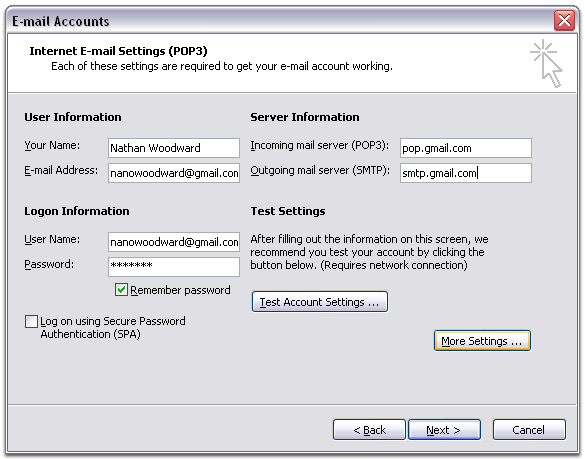
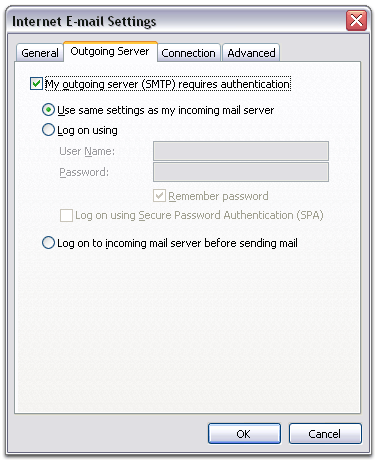
- Click More Settings... and then click the Outgoing Server tab.
- Check the box next to My outgoing server (SMTP) requires authentication and select Use same settings as my incoming mail server.
- Click the Advanced tab, and check the box next to This server requires an encrypted connection (SSL) under Incoming Server (POP3).
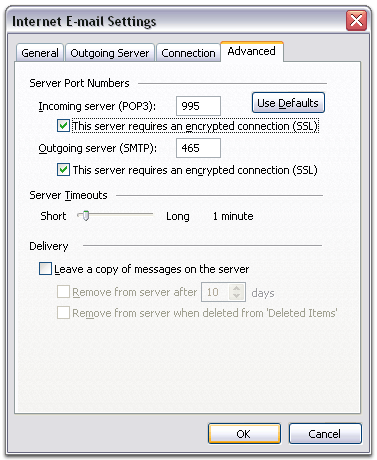
- Check the box next to This server requires an encrypted connection (SSL) under Outgoing Server (SMTP), and enter 465 in the Outgoing server (SMTP) box.
- Click OK.
- Click Test Account Settings... After receiving Congratulations! All tests completed successfully, click Close.
- Click Next, and then click Finish.
- Download the latest updates for Outlook from Microsoft. This will help prevent the most common Outlook errors Gmail users see.
Congratulations! You're done configuring your client to send and retrieve Gmail messages.
Kamis, 13 Desember 2007
Free DownLoad Youtube.com (part 2)
Cuma Pake Mozilla firefox, Trus download extension Video Downloader disini..
Di halaman Youtube yg pengen di D/w, klik aja icon ext ini...
Trus Copy linknya buat di download... (keterangannya bisa di baca disitusnya)
Buat ngeliat hasilnya coba pake FLV player ato pake K-Lite Mega Pack buat baca codecnya...
Semoga membantu..
Di halaman Youtube yg pengen di D/w, klik aja icon ext ini...
Trus Copy linknya buat di download... (keterangannya bisa di baca disitusnya)
Buat ngeliat hasilnya coba pake FLV player ato pake K-Lite Mega Pack buat baca codecnya...
Semoga membantu..
Free DownLoad Youtube.com (part 1)
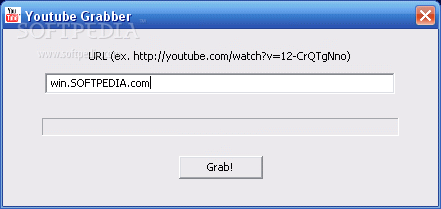
YouTube Grabber adalah program kecil….buat menyimpan film film format flash .flv dari situs www.youtube.com
cara penggunaannya cukup mudah…..cukup copy paste alamat film yg akan di download….lalu tekan grab….film akan otomatis di download….lalu tinggal jalankan menggunakan FLV Player

Silahkan download di : http://s94422120.onlinehome.us/youtubegrabberv1.zip
Untuk FLV Player & Converter silahkan download di :
http://applian.com/flvplayer/?src=KeepvidPlay
dikutip dari sebuah forum
cara penggunaannya cukup mudah…..cukup copy paste alamat film yg akan di download….lalu tekan grab….film akan otomatis di download….lalu tinggal jalankan menggunakan FLV Player
Silahkan download di : http://s94422120.onlinehome.us/youtubegrabberv1.zip
Untuk FLV Player & Converter silahkan download di :
http://applian.com/flvplayer/?src=KeepvidPlay
dikutip dari sebuah forum
Langganan:
Postingan (Atom)
